Adding Testcases Into Testplan
After creating a Test Plan, the next step is to add test cases to it.
This defines which scenarios will be executed as part of the plan.
You can add test cases based on Priority, Status, Sections, or by selecting them manually from the list.
1. Opening a Test Plan
To add test cases:
- Navigate to the Test Plans module
- Select the test plan you want to update
- Click the More Options (⋮) icon in the top-right corner
- Click Update Test Plan
- Click Add Test Cases
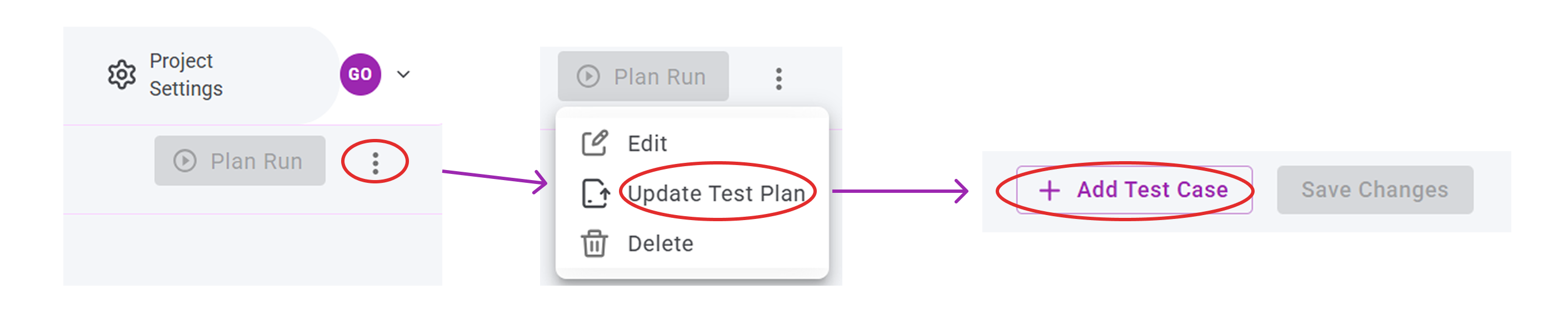
This opens the test case selection window.
2. Test Case Selection Panel
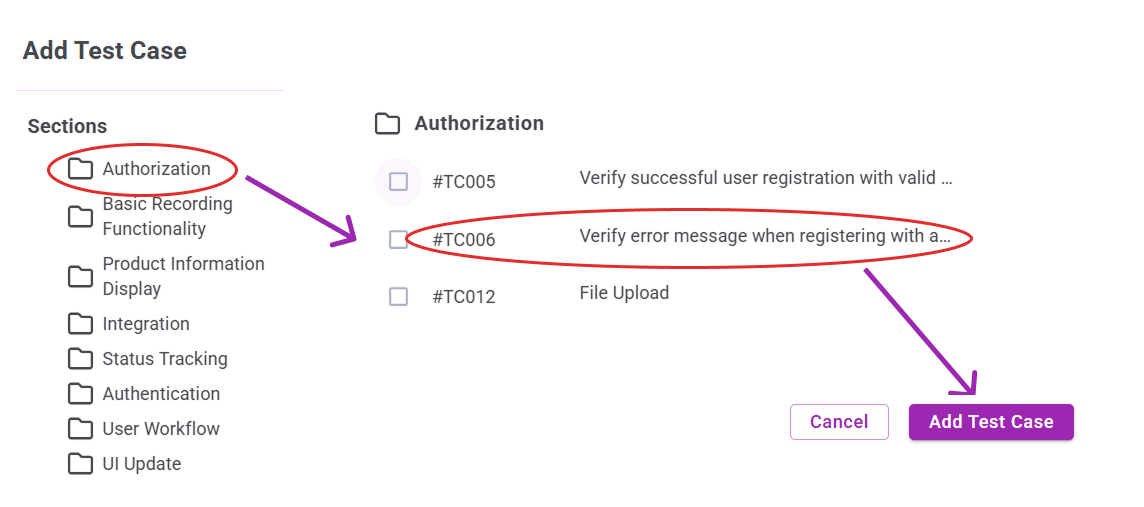
In the Add Test Cases panel:
- Select a Section from the left panel
- Select one or more test cases from the list
- Click Add Test Cases to confirm
3. After Adding Test Cases
Once test cases are added to the Test Plan, you can:
- View all test cases associated with the plan
- Sort by Priority or Status
- Remove test cases if required
- Proceed to Execute Test Plan
- Track execution progress and completion rate
Adding the correct test cases ensures accurate planning and successful execution.